The example shows how to build a module with a user function written
either in C or in Fortran. The process is identical for both, but some menus
differ, depending on the language used. These differences are called out
clearly in the text.
The information on building a module spans two chapters:
If you want more information than is given in Chapter 1 about a particular
step, refer to the parallel section in Chapter 2.
The IRIS Explorer product uses modules to carry out operations on data in
order to visualize the data in a way that has meaning to the observer. The
modules supplied with IRIS Explorer offer a range of functions, but many
users will want to construct their own modules, providing a more specific
function or greater power than already exists.
The Module Builder is a tool that lets you build your own IRIS Explorer
modules, either by modifying and renaming existing IRIS Explorer modules or
by creating new ones. The great virtue of the Module Builder is its graphical
user interface, which lets you build a basic module with no programming
beyond that needed to write the computational function.
The module-building process has three main stages:
Once the module is built, you can wire it into a map in the Map Editor and
use it like any IRIS Explorer module.
The user function is the computational function or subroutine that acts on
the data fed into the module through its input ports and produces new or
changed data on the output ports. It provides the core functionality of the
module.
You are designing a module that will select one data variable, or channel,
from an array that has a number of data variables. Arrays in IRIS Explorer
are called lattices. The module is a simple selector with no limits on the
range or data type. Here is a brief description of the structure you need in
the new module, which you will call
ChannelSelector.
It should take in all the data variables from the input lattice and put
out values for only one data variable. It should have a widget for selecting
a particular data variable. It needs an input port, an output port, some
defined variables for the lattice data and coordinate values, and a
computational function to select out the data values for a specific channel.
The example shows how you can create a channel selector module with a C
function or a Fortran subroutine. The module accepts input data in the form
of an IRIS Explorer lattice. You need not be concerned with lattices now,
except to note that as a matter of convention, the variable names in this
function correspond closely with the variable names in the
cxLattice
data type structure.
To find out more about lattices, read
Chapter
3, "Using the Lattice Data Type".
Working example code for this module can be found in
/usr/explorer/src/MWGcode/Tutorial/C/channel.c
and
/usr/explorer/src/MWGcode/Tutorial/Fortran/channelselect.f. There
are also complete module resources for this code, called
ChannelSelector.mres
in the same directories. You can open the respective files to see how yours
should look.
In the following sections you are taken through the steps required to
construct a module using existing code, while imposing as few restrictions on
the module as is feasible. This situation will occur frequently if you reuse
existing and well tested code, for example from a library. Some steps might
well be different if you decide to write code specifically for the module.
This is indicated in the text.
The function called
Note that the code is written for
float
data only. Through the specification in the module resources file, IRIS
Explorer can ensure that this code may also be used for other data of a
different type. To find out more about automatic type coercion see
"Automatic Type Coercion of Arrays"
in Chapter
2.
The Fortran subroutine called
Note that the code is written for REAL data only. Through the specification
in the module resources file, IRIS Explorer can ensure that this code may
also be used for other data of a different type. To find out more about
automatic type coercion see
"Automatic Type Coercion of Arrays"
in Chapter
2.
Since
cxLattice
is a C data structure, the Fortran code contains pointers to the
cxLattice
data type (see
Chapter
3, "Using the Lattice Data Type"). )
Before you start to build this module, you need to set up a test directory
and copy the example code into it.
You can now build your module using the Module Builder and run it in the
Map Editor. Just follow the steps in the next sections.
The method for building modules is the same for both languages, although
some of the information you enter varies according to whether the user
function is written in C or Fortran. Because the similarities are so great,
this tutorial presents the process for users of both languages together.
Where the activities for the two language diverge, the differences are
clearly marked and parallel instructions are given for each language.
Make sure you are in the
testMod
directory, then start up the Module Builder:
The Module Builder main window appears (see
Figure
1-1
and
Figure
1-2). Click in the Module Name slot to select it and delete the default,
then type in the module name
ChannelSelector. In the next slot, enter the name of the file that
contains the user function:
You can also specify include files, additional libraries or your own
Makefiles, but none are required for building the
ChannelSelector
module. To learn more about these options, read through"The Include Files"
and
"User Makefiles"
in Chapter 2.
The Module Builder creates a number of files as you go through the
construction process. The Module Builder automatically saves all the module
characteristics, or resources, that you have just specified in the module
resource (.mres) file before it builds the
module. This is a binary file and cannot be accessed directly.
You can use "Save Resources" on the File menu to save your work at any
time during the module construction phase. It is a good idea to save your
work periodically if you expect to be interrupted or if you are building a
very complex module.
To quit the Module Builder at any time once it has been invoked, click on
the
File
menu on the main window and select "Quit" (see
Figure
1-3).
The inputs, outputs, function arguments, and connections among different
variables constitute the internal structure of the module, and you define
this structure in the Module Builder windows. You can have only one window
open at a time, other than the main window.
Click on the first button,
Input Ports, to bring up the Input Ports window (see
Figure
1-4).
Note: The window is initially displayed with only one text slot.
Click on the slot to highlight it and press
Enter
to produce a new text slot.
The module requires an input port that will accept data in the form of the
lattice data type.
When you select
cxLattice
from the data type option menu, the Lattice Constraints window appears (see
Figure
1-5). To define the characteristics of the lattices the input port will
accept:
The input port called "Input" will now accept a lattice of any dimension
and data type, containing any number of data variables and with any number of
coordinates per node. Note that it is good practice to write modules with as
few restrictions as possible. As the user functions have restrictions on the
data types, the generality is in this case achieved through automatic type
coercion by IRIS Explorer wrapper code. In general, you need not change
existing code to widen its application range; IRIS Explorer can do this for
you.
The next step is to define a parameter for the input port in the Input
Ports window (see
Figure
1-4).
The module must receive data on both its input ports before it will fire,
so each port is made a "Required" port.
Click the
Output Ports
button to bring up the Output Ports window (see
Figure
1-6). The module needs an output port so that it can pass the data from
the selected channel downstream to the next module.
To create the output port:
When the Lattice Constraints window appears (see
Figure
1-7), set the constraints. All the constraints, except the
Num Data Variables, are the same as those for the input lattice,
however, the
Num Data Variables
is set to 1 in the output lattice because only one data channel is being
output.
For more information about input and output ports, read
"Creating Ports"
in Chapter 2.
The Function Arguments window defines each function argument in the user
function. Each function argument must be connected to an input or output
item. You list the function arguments in their calling sequence, as shown in
Figure
1-8
and
Figure
1-9.
To define the function arguments:
The function arguments for the C function are shown in
Table
1-1
and
Figure
1-8.
The function arguments for the Fortran subroutine are shown in
Table
1-2
and
Figure
1-9.
For more information about the data types and reference mechanisms, read
"Defining Function Arguments"
in Chapter 2.
These are the function arguments for the C function.
These are the function arguments for the Fortran subroutine.
Figure
1-8
shows the argument names, data types, and references you enter if you are
building your module around the C user function.
Figure
1-9
shows the argument names, data types, and references you enter if you are
building your module around the Fortran user function.
Each port must be connected with one or more function arguments, so that
the incoming data can be routed to the correct function argument and the
outgoing data can be directed to the correct output port.
The connections are identical for C and Fortran user functions.
When you click
Select, a blue wire links the input port with the function
argument.
To break a connection, simply click on both ends of the connection, as in
the Map Editor.
The popup menu in
Figure
1-11
shows one connection from the input port (top-level Lattice Structure) to the
output port.
It also shows four connections from lattice components, such as the number of
dimensions (Num Dimensions), to function arguments. The Output port has three
connections passing into it, although the port menu is not shown. The details
of the data type structures are explained in Chapters 3 through 7.
The correct connections are critical to the proper operation of the
module. In this example, the values affected by the function arguments are
passed separately to the lattice structure on the output port. The values for
all members of the lattice data type not explicitly linked to function
arguments are passed directly from the input port to the output port as
default values.
For more about connecting ports and function arguments, read
"Connecting Arguments to Ports"
in Chapter 2.
To build the
ChannelSelector
module correctly, you must make these connections. They are the same for the
C and the Fortran modules.
Num Dimensions
to argument
nDim
Dimensions Array
to argument
dims
(switch off
Copy
by pressing the yellow button; see Figure 1-12)
Num Data Variables
to argument
nDataVar
Data Array
to argument
dataIn
Note that storage for arrays must be allocated in this way for Fortran
programs, as in general there is no Fortran equivalent of the C malloc
function. C programmers might prefer to allocate storage for arrays in the
usual way with malloc inside their programs, rather than using the IRIS
Explorer
<<Storage>> connection.
<<Storage>>,
<<Constant Value>> and
<<Extern>> are "pseudo-ports". When you connect one to a
function argument, you use the second item on the
function argument popup menu) to define the value for
the pseudo-port. In this example, you need to define the storage value. The
value is different for C and Fortran modules.
To set the storage size for
dataOut, click the menu item "Set storage size" and
enter the text shown in
Figure
1-15
and
Figure
1-16
for the C and Fortran modules respectively. There is a default setting which
you should delete first.
This text is expected by the code that the Module Builder generates when
the module is built. In this example, a routine is called to compute the
number of floating (C) or real (Fortran) values that must be allocated for
the
dataOut
function argument.
You can enter comments after the values if you wish, to remind you and
explain to others why you chose this value.
When you have filled in all the popup windows and made all the connections
you need, click
OK
to save the configuration and close the window.
For more information about the use of pseudo ports, read
"Creating Ports", in Chapter 2.
The module has an interface that allows it to be controlled by the user.
This interface is the module control panel. See
"Editing Control Panels and Functions" in the
IRIS Explorer User's Guide
for more details on control panel design and widget use.
The module control panel holds widgets, such as dials and sliders, that
let you control the values of input port parameters interactively.
Click the
Control Panels
button to invoke the Control Panel Editor. The Control Panel Editor and a
prototype control panel appear (see
Figure
1-17).
All ports of type
cxParameter
appear in the "Parameters" list in the Control Panel Editor. In this example,
"Which" is a parameter port (see
Figure
1-17). It is characterized in the control panel as a slider by default
because its values are floating or real.
To change the widget for "Which" to another kind, click the left mouse
button on it to select it, then click the Type option menu under Widget
Attributes. You can select any widget type that is not grayed out.
To change the widget's position in the control panel, click it to
highlight it, then hold down the left mouse button and drag it into a new
position.
To change the widget's size, use the type-in slots to enter a new set of
dimensions, or drag on any of the eight black handles around the widget.
To set the lower limit for the slider, double-click on the left-hand text
slot beneath the slider and type
1, then hit
Enter. The module input port can accept a lattice with any number of
data variables, and so the upper limit for the slider will be unknown in
general, but you can still set a sensible value for this number. So, type
5
in the right-hand slot and hit
Enter
(see
Figure
1-17). Finally, you can enter a current value for the parameter in the
text field above the slider.
You can create your own menu bar options for the module control panel. For
this module, you will create a File menu with a "Reset" option.
A new option menu button appears on the right, together with a text slot.
You can close each open window individually, or you can select
OK
on the Control Panel Editor, which closes all the subsidiary windows and
applies the changes you have made.
You can click on the
Control Panels
button to bring up the prototype control panel again. You will see that it
now has a File menu on its menu bar. Click File to see the "Reset" option.
This completes the construction of the module. The next stage is to build
the module and install it in IRIS Explorer so that you can use it in a map.
You have a blueprint for a module that must now be turned into an
executable program. The code is linked and compiled during the build process.
The Module Builder Build menu provides lets you set defaults and build the
module. To check the build options for the Channel module, select "Options"
from the Build menu. The Build Options window appears (see
Figure
1-20).
You want to accept all the current defaults. You want the Module Builder
to:
Click
OK
to accept the default options and close the window.
For more information about build options, read
"Using the Build Menu", in Chapter 2.
The Build command is on the Build menu (see
Figure
1-21).
If you receive this message:
check to see that you are running the Module Builder from your current
directory.
You can now run the Map Editor by typing
explorer
at the shell prompt, and launch the
ChannelSelector
module from the Module Librarian.
To see how it works, connect these modules:
ReadImg
to
ChannelSelector
to
DisplayImg. Read in the image file
/usr/explorer/data/image/flowers2.rgb
and select each of the color channels, 1 to 3, in turn. You may also reset
the channel to 1 by clicking on the "File" option on the menu bar and
selecting "Reset".
The source for the example module discussed here does not make use of
the IRIS Explorer Application Programming Interface (API). In this
section, we present an alternative module which performs the same function
as the example module, but which uses the API. The API is a library of
routines which give access to the creation and manipulation of the IRIS Explorer
data types. It is described fully in the IRIS Explorer
Reference Pages. The advantage of using the API is that
it allows IRIS Explorer types to be handled within the function, which
simplifies the way in which the function is connected to the module ports.
The disadvantage is that the source must of course be modified to to invoke
the relevant routines. The alternative source (in C and Fortran) which uses the API is
presented in The Channel Select Module
in Chapter 2. Here, we describe the differences between its module resources
and those which have been constructed in this Chapter. These only appear
in two places - the Function Arguments and the Connections. Everything
else - the definition of the ports and the control panel - is unchanged. Figure 1-22 and Figure 1-23
show the Function Args Window for the C and Fortran versions of the module.
In C, the input and output lattices are both typed as cxLattice*,
with the input lattice being passed as a Scalar, and the output lattice
as a &Scalar (i.e. the address of a scalar). In Fortran, both lattices
are typed as an integer and passed as a Scalar. The close correspondence
between the definitions in the window and those on the function call line
can clearly be seen. The Connections Window is the same for both C and
Fortran versions of the module. The Lattice Structure component
of the Input port is connected directly to inLat, and outLat
is connected directly to the Lattice Structure component of the
Output port. Because the output lattice is created inside the module (via
a call to the cxLatNew API function) there is no need to
use the <<Storage>> pseudo input port together with
an internal function to calculate its size, as was
required in the example module. You can mix IRIS Explorer datatypes with the other primitive datatypes
on the function call line. For example, there is a connection from Value
component of Which to the which argument, as before.
Introduction to Module building
Creating the User Function
Designing the Example Module
Writing the User Function
Example Code and Modules
The C User Function
/* User function to select a single data channel
 * from a lattice of type float
 *
 * The Iris Explorer wrapper code will ensure that lattice data
 * of a different type will be converted to float before being
 * passed to this function, and the output lattice converted from
 * float to the type of the input lattice.
 *
 * This feature enables you to write a much more general module that
 * can deal with all data types, not just float. This will be of
 * particular use when you need to utilise already existing code.
 */
long sizes(long nDim, long *dims);

void chan(long nDim, long *dims, long *nDataVar, long which,
	     float *dataIn, float *dataOut)
{
  int i, numElems, sel;

  /* Number of data channels in the input lattice */
  numElems = sizes(nDim, dims);

  /* Use a legal range for the data */
  sel = which - 1;
  if (sel < 0)
    sel = 0;
  else if (sel >= (*nDataVar))
    sel = (*nDataVar) - 1;

  /* Copy the data to the output lattice */
  for (i = 0; i < numElems; i++)
    dataOut[i] = dataIn[i*(*nDataVar)+sel];
  *nDataVar = 1;
  return;
}

long sizes(long nDim,long *dims)
{
  long foo, i;

  foo = 1;
  for (i = 0; i < nDim; i++)
    foo *= dims[i];
  return(foo);
}
The Fortran User Function
C     Subroutine to read in a two-dimensional array
C     and output a one-dimensional array, both of type REAL
C
C     The IRIS Explorer wrapper code will ensure that lattice data
C     of a different type will be converted to REAL before being
C     passed to this function, and the output lattice converted from
C     REAL to the type of the input lattice.
C
C     This feature enables you to write a much more general module that
C     can deal with all data types, not just REAL. This will be of
C     particular use when you need to utilise already existing code.
C
      SUBROUTINE CHAN(NDIM,DIMS,NVARS,WHICH,DATAIN,DATOUT)
C     .. Scalar Arguments ..
      INTEGER         NDIM, NVARS, WHICH
C     .. Array Arguments ..
      REAL            DATAIN(NVARS,1), DATOUT(1)
      INTEGER         DIMS(NDIM)
C     .. Local Scalars ..
      INTEGER         I, J, NUM
C     .. External Functions ..
      INTEGER         SIZES
      EXTERNAL        SIZES
C     .. Intrinsic Functions ..
      INTRINSIC       MAX, MIN
C     .. Executable Statements ..
C
C     Number of elements that needs to be copied
C
      NUM = SIZES(NDIM,DIMS)
C
C     Data channel that needs to be copied
C
      J = MIN(MAX(1,WHICH),NVARS)
C
C     Copy the elements into the output array
C
      DO 20 I = 1, NUM
         DATOUT(I) = DATAIN(J,I)
   20 CONTINUE
C
C     Number of data channels in the output lattice
C
      NVARS = 1
C
      RETURN
      END
C     Subroutine to determine the number of elements in a lattice
C
      INTEGER FUNCTION SIZES(NDIMS,DIMS)
C     .. Scalar Arguments ..
      INTEGER                NDIMS
C     .. Array Arguments ..
      INTEGER                DIMS(NDIMS)
C     .. Local Scalars ..
      INTEGER                I
C     .. Executable Statements ..
C
      SIZES = 1
      DO 20 I = 1, NDIMS
         SIZES = SIZES*DIMS(I)
   20 CONTINUE
C
      RETURN
      END
Setting up your Build Environment
cd ~
mkdir testMod
cd testMod
cp /usr/explorer/src/MWGcode/Tutorial/C/channel.c . (C)
cp /usr/explorer/src/MWGcode/Tutorial/Fortran/channelselect.f . (Fortran)
C or Fortran?
Invoking the Module Builder
mbuilder
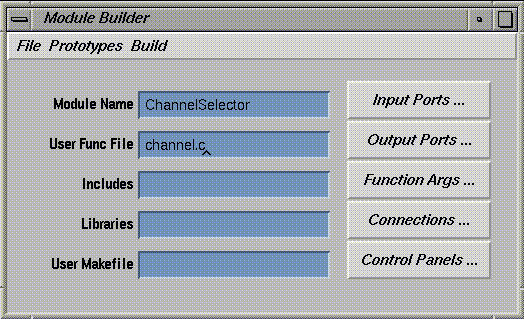
Figure 1-1 The Module Builder Window for C Users
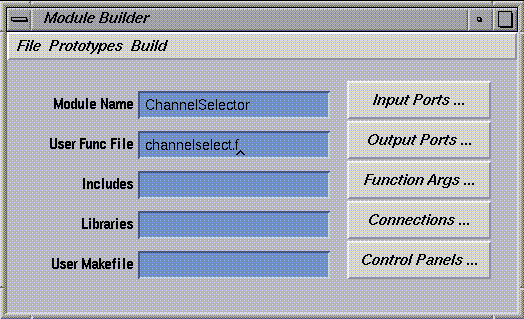
Figure 1-2 The Module Builder Window for Fortran Users
Saving the Module Resources
Exiting from the Module Builder
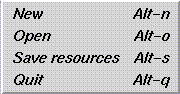
Figure 1-3 Module Builder File Menu
Defining the Internal Structure
Creating an Input Port
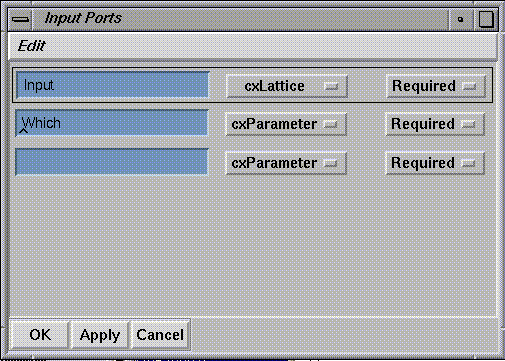
Figure 1-4 Input Ports Window
Defining the Data Type
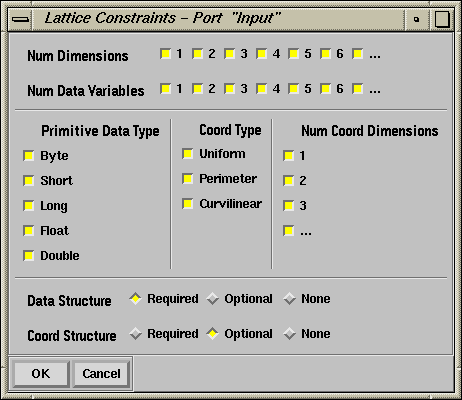
Figure 1-5 The Lattice Constraints Window
Defining the Parameters
Creating an Output Port
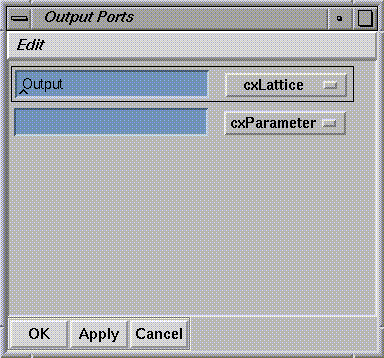
Figure 1-6 The Output Ports Window
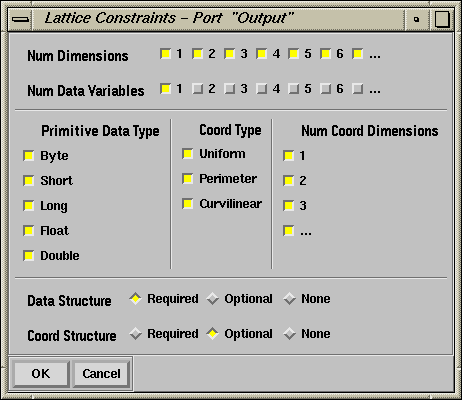
Figure 1-7 Lattice Constraints for the Output Port
Defining the Function Arguments
Argument Name
Type
References
nDim
int
Scalar
dims
int
Array
nDataVar
int
&Scalar
which
int
Scalar
dataIn
float
Array
dataOut
float
Array
Argument Name
Type
References
nDim
integer
Scalar
dims
integer
Array
nDataVar
integer
Scalar
which
integer
Scalar
dataIn
real
Array
dataOut
real
Array
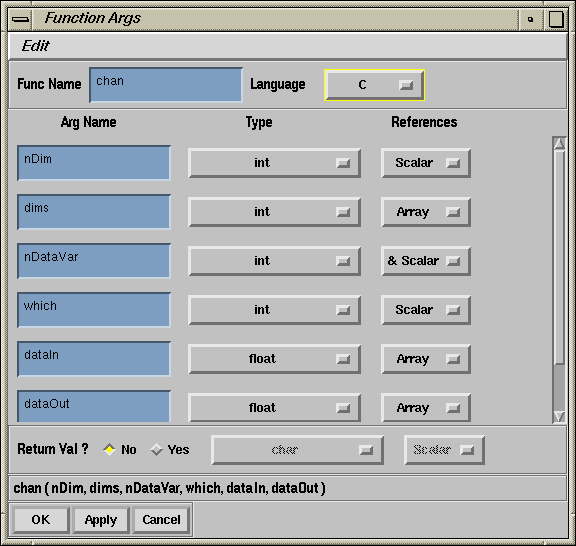
Figure 1-8 The Function Args Window for C Users
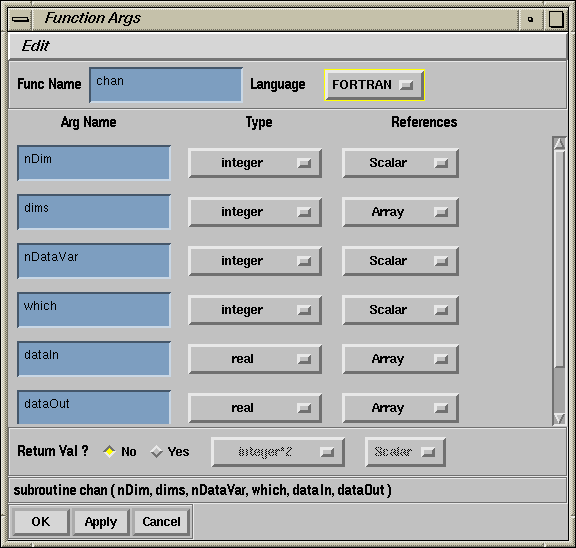
Figure 1-9 The Function Args Window for Fortran Users
Connecting Ports and Function Arguments
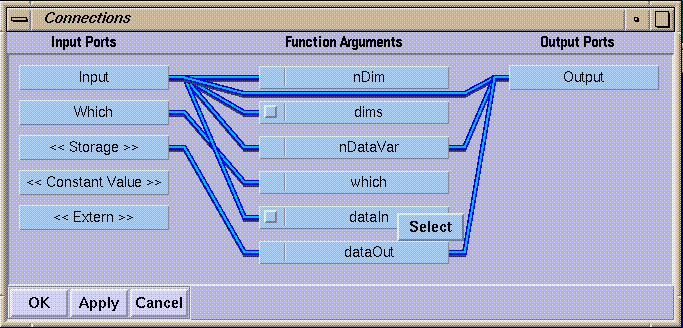
Figure 1-10 The Connections Window
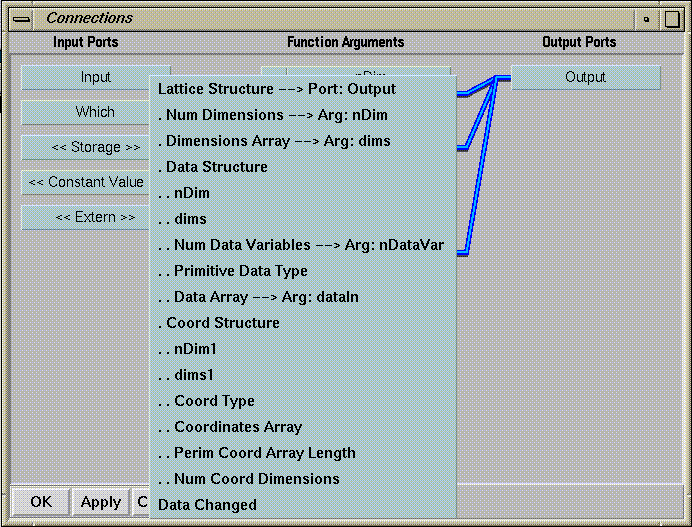
Figure 1-11 Input Port Popup Menu
Making the Right Connections
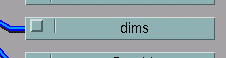
Figure 1-12 Array Function Argument. The Copy button on the left is
switched off, so the array itself is passed to the function.
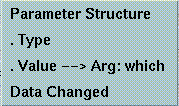
Figure 1-13 Port Popup menu for a Parameter
Using the Pseudoports
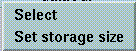
Figure 1-14 Function Argument Menu for an Array Item
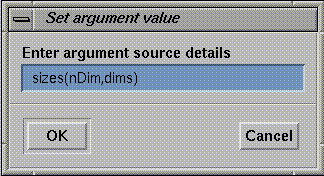
Figure 1-15 Setting Storage Size for C Users
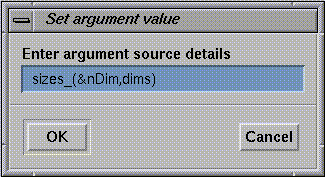
Figure 1-16 Setting Storage Size for Fortran Users
Defining the User Interface
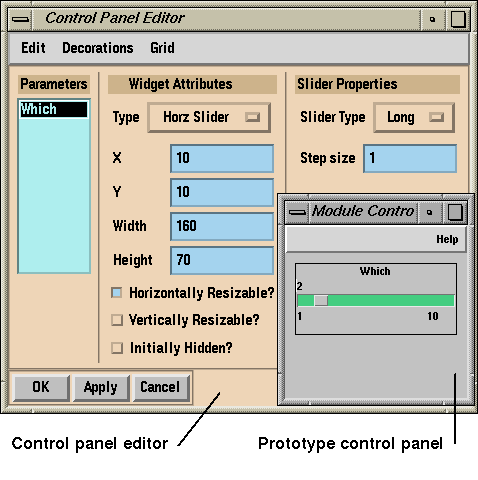
Figure 1-17 Control Panel Editor and Control Panel
Creating a Menu Item
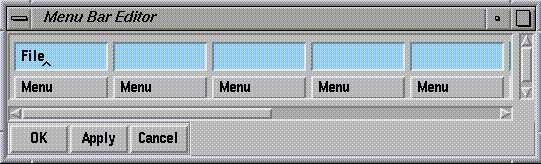
Figure 1-18 Menu Bar Editor
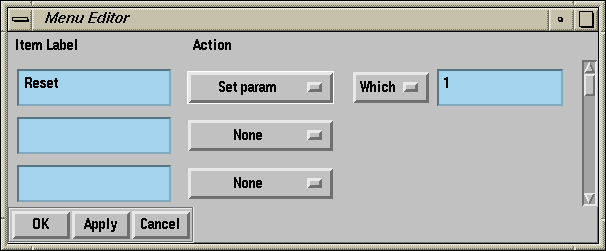
Figure 1-19 Menu Editor
Testing the Menu Bar
Building the Module
Selecting Build Options
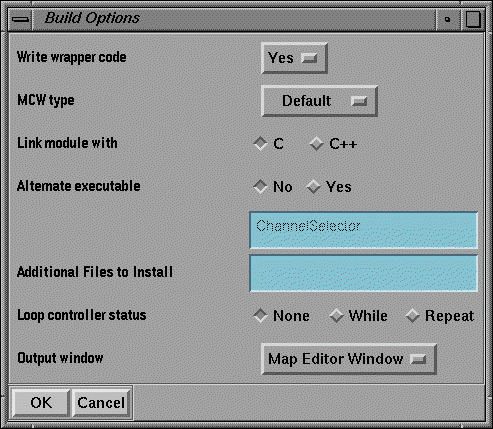
Figure 1-20 Build Options Menu
Running the Build Command
compile, link or install MAY have failed,
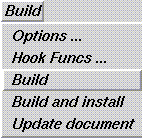
Figure 1-21 Build Menu Options
Building a Module which uses the API
The Function Arguments
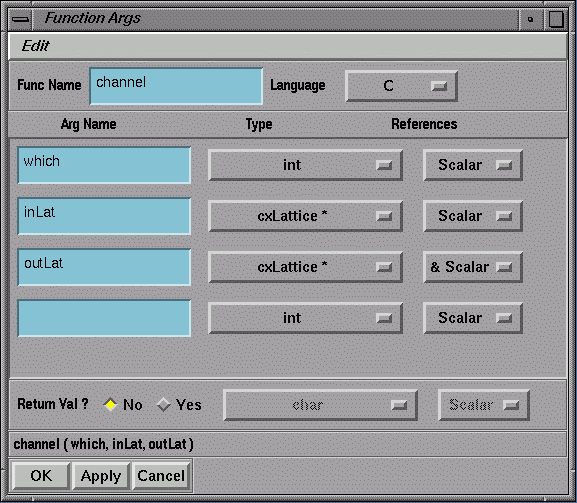
Figure 1-22 The Function Args Window for C Users
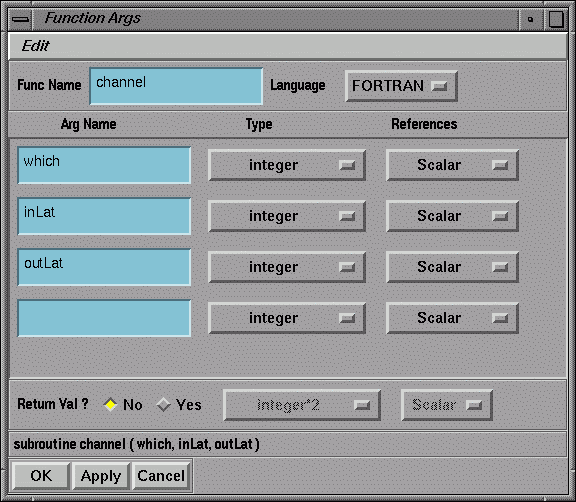
Figure 1-23 The Function Args Window for Fortran Users
The Connections
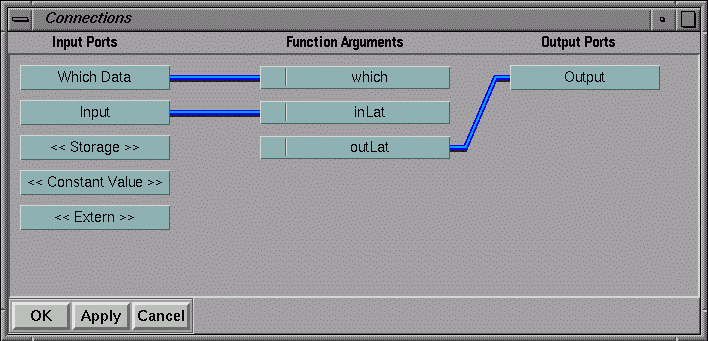
Figure 1-24 The Connections Window
Last modified: Tue Nov 26 11:30:59 1996
[ Documentation Home ]