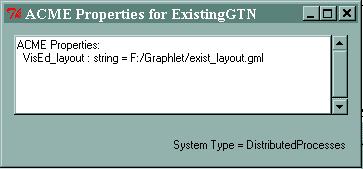
An important aspect of ACME System descriptions are the properties associated with them. You may view the properties of any Component, System or Connector from within VisEd. To view the system properties, first ensure that no component or connector is selected (just click in a clear area of the display [BE SURE YOU ARE STILL IN LAYOUT MODE!]). Then right click in a clear area and select ACME Properties from the context menu.
The System Properties dialog gives you a list of all defined System Properties in the ACME description It also provides type information. In this example there is only one system property named VisEd_layout which we created earlier. Note that this system has a type of DistributedProcesses. To dismiss the dialog, use the window close mechanism provided by the system.
Component and Connector properties can also be viewed in a similar manner. Move the mouse pointer over the component Application_Manager and use the right mouse button to bring up the context menu (Remember to unselect any selected items by left clicking in a clear area). Then select ACME Properties. This brings up a property dialog that is generally the same as the system property dialog. The most noticable exception is the port list which shows all the ports available to this component.
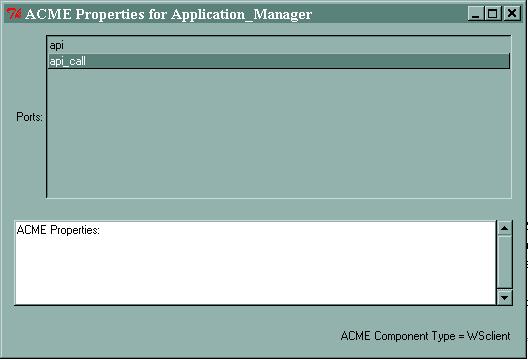
This dialog shows that component Application_Manager has two ports: api and api_call, has no properties and is of type WSclient. The dialog is closed using the system close function provided by the window manager.
Viewing Connector properties is an identical operation, except the port list box is replaced with a role list box.
To save the ACME representation in postscript for printing, simply use the File->Export->Encapsuated Postscript... menu item. Then use the file type selection to pick between eps and ps formats. You may then embed this in other documents or use ghostview (gsview for windows) to view/print the representation.
In this lesson, we have learned the following items: