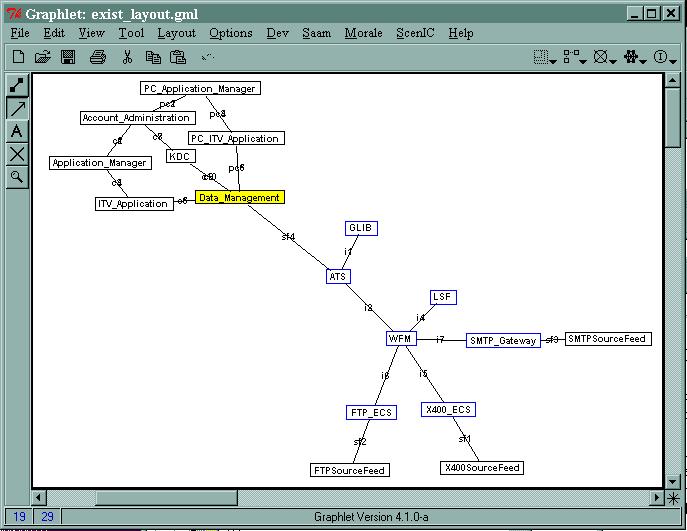
After you have the system looking like you want, you probably wish to save it. To do so, use the Graphlet File->Save or File->Save As menu item or use the Save button (the floppy disk picture) on the Graphlet Toolbar. This will save the layout description as a gml (Graph Markup Language) format file. There is a hook in the Graphlet save command that writes an ACME System Property called vised_layout which allows the graph to be properly layed out when it is reloaded.
If you add components or connectors to the design, it is important you save the new layout so these components will be shown properly when reloaded.
To save, type in the filename exist_layout.gml in the entry box and press the save button.
The components which are shaded yellow have been determined by ACME Server to have underlying representations and thus are shaded yellow in the diagram. These can be expanded to show the sub-components by using either of two methods.
First, you may desire to expand the system in place. This has the advantage that all bindings are resolved in the current view and you can easily see how the subsystem connects to the upper level components. To expand a subsystem in place, move the mouse pointer over the DataInterchange component and press the right mouse button to bring up the context menu. Select the menu item Expand in Place and the DataInterchange component will be replaced its subcomponents.
Note that the subcomponents are concentrated in the upper right corner because there is no default layout that accounts for this condition. Use Layout->Spring Embedder with Constraints. Set the scale to 66% (if not there alreassdy) and scroll the canvas until the architecture is in view.
You can now see a set of components which are outlined in blue. These are the subcomponents of the expanded component (i.e. the subcomponents of DataInterchange). You can easily see the connections between the lower-level components and the upperlevel components by using this technique, but the disadvantage is the introduction of more complexity to the diagram.
To revert to just the top-level components again, use Morale->Revert/Update System. You will note that our saved layout was not used. Why Not? Because when using this menu item, you are asking the server to repopulate the graph with the latest version of the description. Remember that multiple people may be using the same description and therefore may have added new components. These might not be accounted for in the layout file, so the layout is not used.
Now select Layout->Spring Embedder(GEM) and adjust the Layout further if you desire.
The other technique for expansion of a system is to expand it in a new view. This technique has the advantage of keeping the top-level system intact and uncluttered, and allows you to view the subsystem separately. Now move the mouse pointer over the DataManagement component and use the context menu to select Expand in New View.
You should now see a new editor window entitled ACME Subsystem of DataManagement. Select Layout->Spring Embedder with constraints. Adjust the layout further if desired. Be sure you are in layout mode! Note that some components are filled with red. These represent the upper-level components that have bindings into the subsystem. These exist so that you can maintain context when viewing the subsystem.
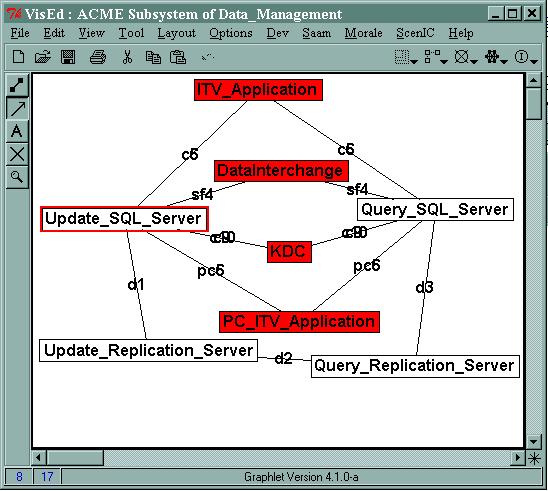
To close the subsystem view, use the File->Close menu item. DO NOT USE FILE_>EXIT as this closes all editor windows and ends your VisEd session!