Scenarios for Jestre
I - Select A MailBox
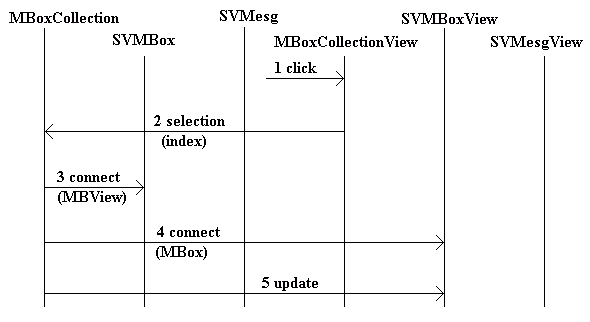
- User clicks the MailBox on MBoxCollectionView
- MBoxCollectionView tells MBoxCollection about the Selection
- MBoxCollection gets the SVMBox and connects it to the SVMBoxView
- MBoxCollection connects the SVMBoxView to the SVMBox
- MBoxCollection tells the SVMBoxView to update
II - Create/Delete/Rename a MailBox
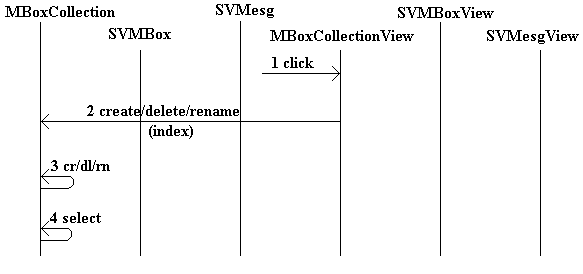
- User clicks the button in MBoxCollectionView
- MBoxCollectionView tells MBoxCollection about the command
- MBoxCollection takes the appropriate action, prompting if necessary
- MBoxCollection does a Select
III - Search for messages containing a sub-string
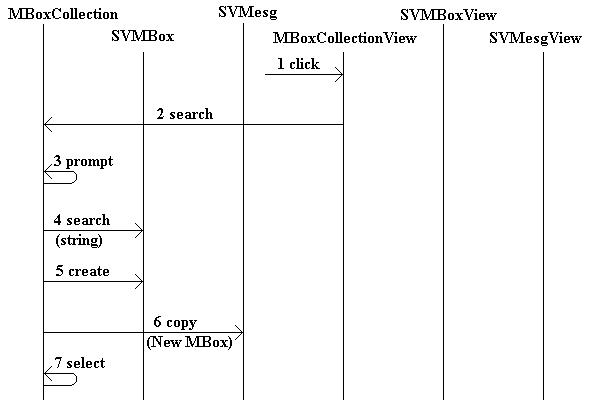
- User clicks the Search button in MBoxCollectionView.
- MBoxCollectionView tells MBoxCollection to search
- MBoxCollection prompts the user for the string, and to find out
whether to search all MailBoxes or just the current one
- MBoxCollection tells each SVMBox to search itself and return matching
messages
- MBoxCollection creates a new Search-Result MailBox
- MBoxCollection copies the matching messages to the new MailBox
- MBoxCollection performs a Select on the new mailbox
IV - Select or Deselect a Message
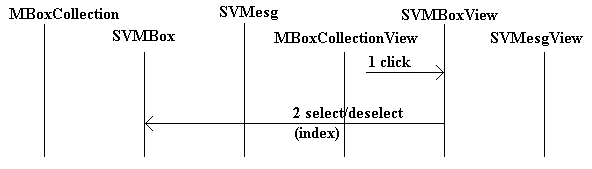
- User clicks on the Message list in SVMBoxView
- SVMBoxView calls the Select/Deselect method in SVMBox
V - Delete a Message
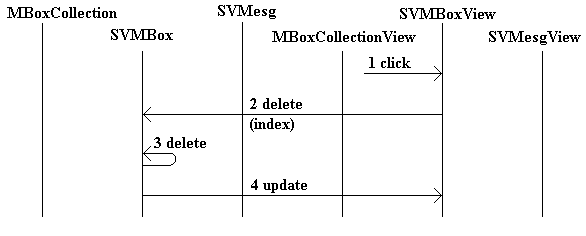
- User clicks the Delete button in SVMBoxView
- SVMBoxView tells SVMBox to delete the message
- SVMBox deletes the message
- SVMBox tells SVMBoxView to update
VI - View a Message
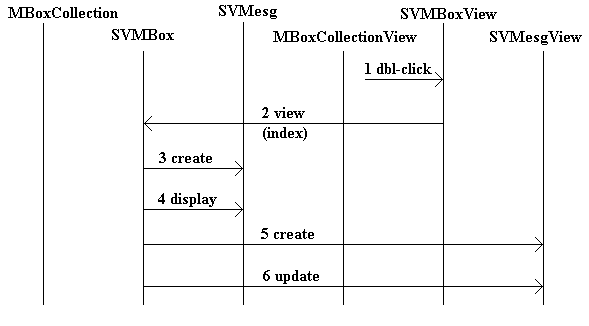
- User double-clicks the message in SVMBoxView
- SVMBoxView tells SVMBox to view the message
- SVMBox creates the message
- SVMBox tells the message to display
- The SVMesg creates its SVMesgView
- The SVMesg tells the SVMesgView to update