Project 1: Image Filtering and Hybrid Images
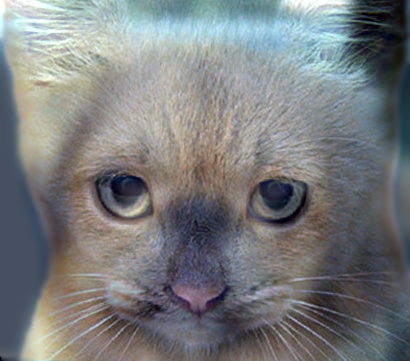
Illustration 1. Hybrid image of a dog and a cat.
The goal of this project is to create our own image filtering function and to use it to generate hybrid images. For this purpose, we have used Matlab as our image processor.
Here, we will discuss the steps taken during the development of the project as well as the results obtained. As mentioned above, the project can be broken down into two main parts:
- Image filtering
- Hybrid images
In our first point, we will focus on the code created to implement the function, while for the second part, we will mainly show the results obtained. This is because, once the filtering function is created, the generation of hybrid images is straightforward.
1. Image Filtering
Filtering (or convolution*) is a technique used in image processing to modify or enhance an image. The process consists of the application of a specific kernel or filter (mathematically a matrix ) to an image, such that the output will be determined by a neighborhood combination of additions and multiplications at a pixel level.
In this part of the project we will try to replicate Matlab's built in function imfilter. Our function will receive two parameters: image, the image to be filterred and filter, the kernel to use to filter the image. The size of the kernel can be variable, although an odd size both in the vertical and the horizontal axis can be assumed. The first thing to notice here is that, in order to process the pixels that are at the boundaries of the image, a padding frame is necessary. Luckily for us, Matlab has its own padding function, padarray, and we will use it as shown in the code below. (More information about padarray can be found here.)
% Calculate size of the padding frame depending on filter
vertPad = floor(size(filter, 1)/2);
horPad = floor(size(filter, 2)/2);

% Create frame using reflection
padImage = padarray(image,[vertPad horPad],'symmetric','both');
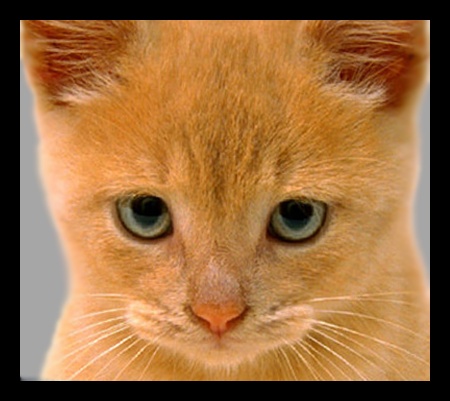
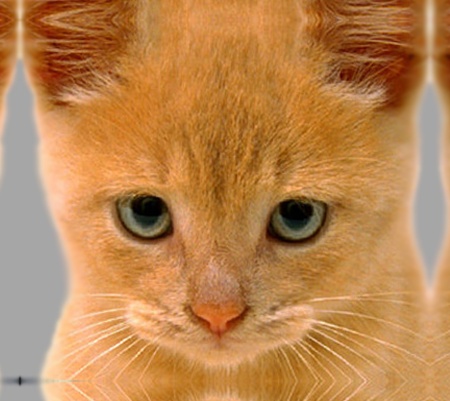
The most important thing to notice here is that we have selected 'symmetric' although the default option for imfilter is zero padding. The reason to this decision is that mirroring pixels returns more faithful representations of the original picture, since the added pixels are in tune with the actual pixels of the image. This approach generally creates better outputs than other methods such as adding a black padding frame or wrapping around. (See Illustration 2.)
|
|
Illustration 2. Comparison of zero padding (left) and reflection padding (right).
Once that we have created our padded image, the next step is to apply the filter. This can be done with simple nested for loops that will iterate in each of the three dimensions of the picture, and a addition of the elements result from the dot product of the matrixes corresponded to each pixel and the kernel. This might be more easily understood with the code below:
% Establishing the output image size
output = image;

% % Filtering and cropping
for k = 1:3
    for j = horPad+1: horPad + size(image, 2)
        for i = vertPad+1: vertPad + size(image, 1)
            aux_mat = padImage(i-vertPad:i+vertPad, j-horPad:j+horPad, k).*filter;
            output(i-vertPad, j-horPad, k) = sum(aux_mat(:));
        end
    end
end
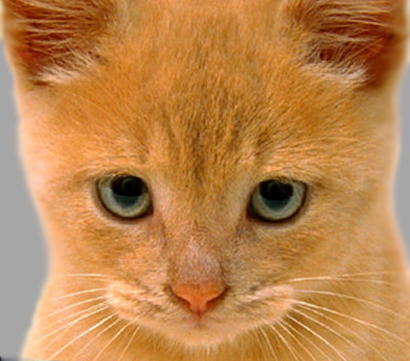
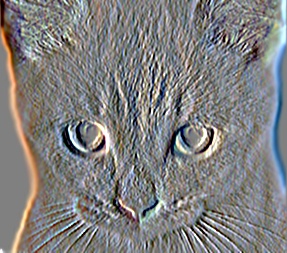
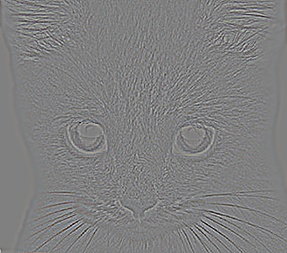
These are some of the results obtained by applying different filters:
|
Illustration 3. Different filters applied to the same image: original (left), sobel (middle), laplacian (right).
*Note that although both terms filtering and convolution are sometimes used indistinctly, Matlab does make a difference between them, and indicates for its filter2 function that "2-D correlation is related to 2-D convolution by a 180 degree rotation of the filter matrix."
2. Hybrid Images
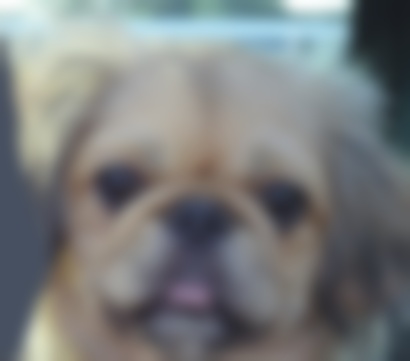
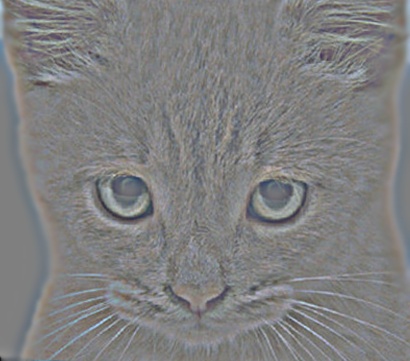
A hybrid image is a picture that can be interpreted in two different ways depending on the viewing distance. This is possible because the image merges low frequencies of one picture with high frequencies of another, allowing a variable interpretation depending on the viewing point. For the this project, low-frequencies images have been obtained using Gaussian blur (and its corresponding cutoff frequency) which will remove high frequencies of the pictures. On the other hand, high frequencies images have been generated by substraction their own low-frequencies version of the image to their original ones. We can see an example of these pictures below.
|
Illustration 4. Low-frequencies dog picture and high_frequencies cat picture.
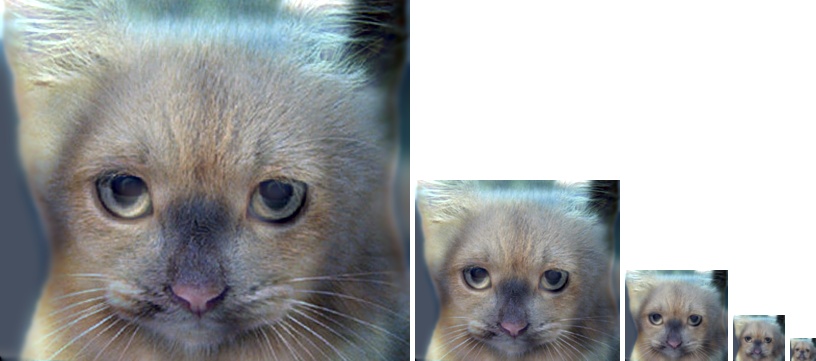
Once the low and high frequencies images have been generated, creating the hybrid image becomes trivial. It can be generated by just superimposing one image on top of the other.
|
Illustration 5. Hybrid image of a dog (low-frequencies) and a cat (high-frequencies) with a cutoff frequency of 7.
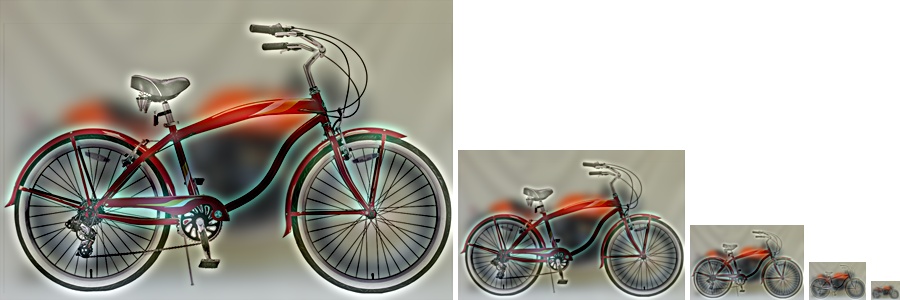
The next thing we tried was to use two cutoff frequencies, one for each image, in order to generate better hybrid images (as suggested in Oliva, Torralba, and Schyns' "Hybrid image" paper). Here are some of the results obtained.
|
Illustration 6. Hybrid image of a motorcycle (low-frequencies, cutoff: 8) and a bicycle (high-frequencies, cutoff:5).
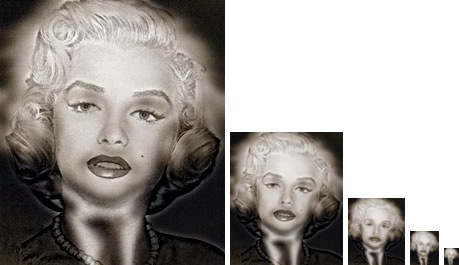
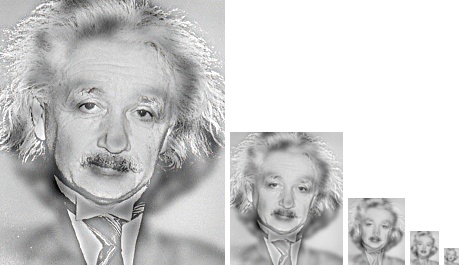
Illustration 7. Hybrid images of a low-frequencies Marilyn picture and a high-frequencies Einstein picture on the left, and viceversa on the right.
From this last pair of images we can perceive how different the results can be when low-frequencies and high-frequencies pictures are switched. On the left image, the character that can be seen at a close distance is Marilyn, while at a further point it would be Einstein. The perceptions are the other way round for the image on the right side. Another interesting point, is to see how dark colors from Einstein's image predominates in the left picture, while inversively whiter colors predominates on the right.